
Improvements
Donor Profile View
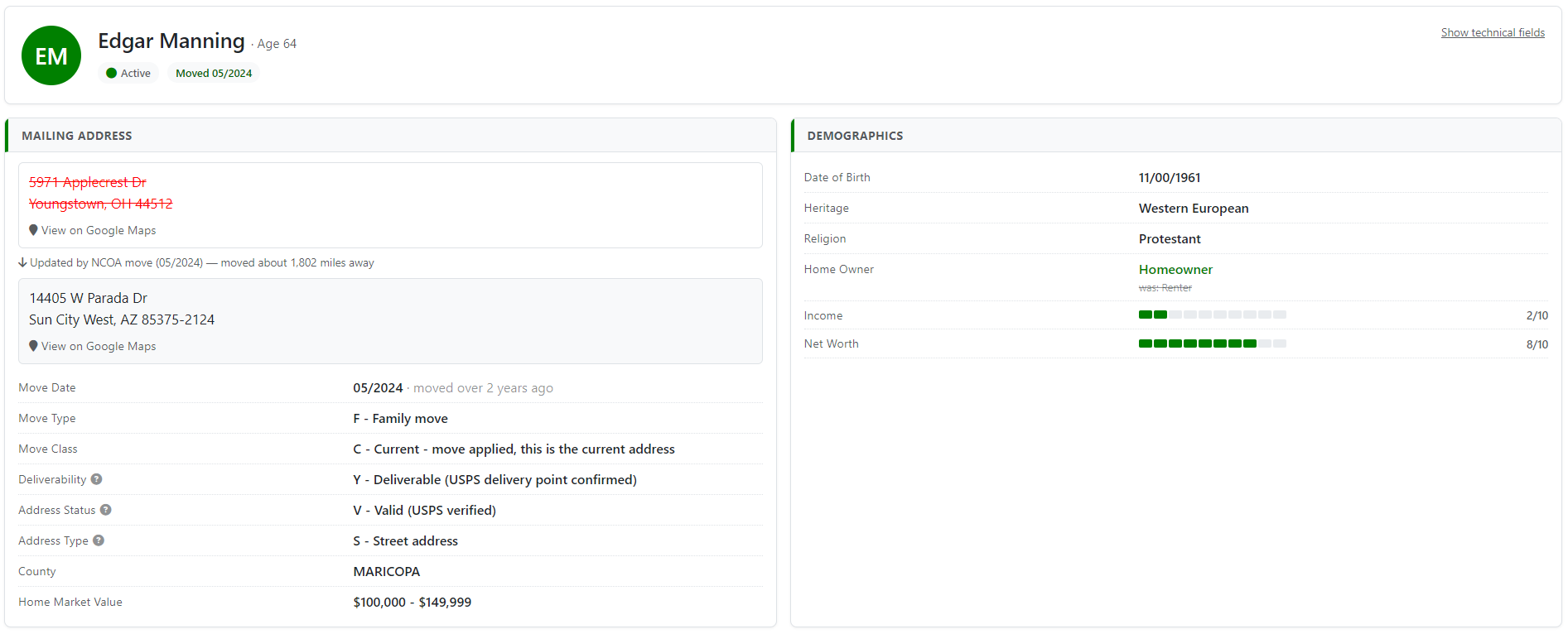
The record display page has been redesigned as a donor profile. Instead of a technical list of fields, each record now presents the information the way you would tell the donor’s story: who they are, where they live, what changed, and what needs your attention.
Implementation
Open any record from the Records page or a dashboard drill-down. The profile opens with the donor’s name, age, and status at the top, followed by cards for each part of their story:
- Mailing Address — the address as it will print on an envelope, with a link to view it on Google Maps. When NCOA reports a move, the previous address is shown struck through with the new address below it, along with the move date (“12/2024 · moved over a year ago”), the move type, and approximately how far the donor moved.
- Deliverability — a new field on the address card: whether USPS confirms mail can actually be delivered to this exact address. This is separate from the Address Status (whether the address exists in USPS data) — an address can be valid but not deliverable, and the new help icons on each field explain the difference.
- Contact — email and phone with their validation statuses, now spelled out (“V - Valid (well-formed email address, standardized)”) with help icons describing exactly what is checked.
- Demographics — income and net-worth deciles presented as ten-segment gauges, with dates of birth and other person-level details.
- Deceased — when a record carries a deceased match, a dedicated card shows the match type (Individual or Household), the matched name, the date, and a link to the obituary the match is based on.
- Tasks — the record’s open tasks as a widget with status-colored icons and due-date badges (“Due in 12 days”, “Overdue 3 days”).
Household records (one record representing more than one person) display a notice explaining why person-specific fields like Birth Year may be blank and are not sent to your CRM, while household and address details continue to sync normally.
A “Show technical fields” link reveals the complete underlying field list for support conversations, and the whole page follows your light or dark theme preference.
County-Level Map Drill-Down
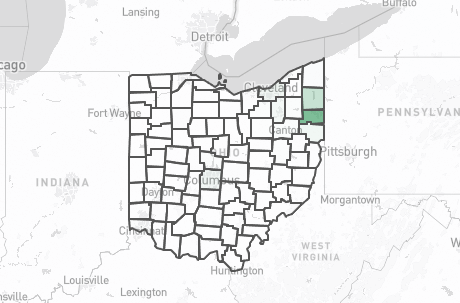
The dashboard map now drills down to the county level. See exactly where your donors are concentrated within a state — and jump straight to the records behind any county.
Implementation
On the dashboard map, hover over a state to see its donor count and share, then click the state to display its counties, shaded by each county’s share of the state’s donors. Click any county for its count and a View Records link that opens the exact list of records in that county. The back control returns you to the national view.
Move and Deceased Details on Dashboard Lists
The lists behind the dashboard cards now carry the details you need at a glance:
- The Moves list shows each donor’s move date. Moves reported by USPS after the forwarding period has ended are labeled expired instead of showing a blank date.
- The Deceased list shows the date and the match type for each record: Individual, Household, or CRM flagged.
Fixes
- Every dashboard number now matches the list it links to. The Moves count reflects actual NCOA moves (address corrections no longer count as moves), the Deceased count includes records your CRM already flagged, and the mailing-address quality counts are accurate before the first synchronization — with each drill-down list showing exactly the records behind the number.
- Phone Status is now displayed alongside Email Status on the record profile; both statuses are spelled out instead of showing a single-letter code.
- Task category headings (Donor Stewardship Tasks, Data Stewardship Tasks) no longer appear on the dashboard when no task types in that category are enabled.
- The in-app “Latest Release” notification has been repaired — it now appears once per release on the dashboard and links to the release notes.